NOTE: If you own two (2) or more motorized products that only operate as a group, you will need to disconnect power from the products you are not programming.
Setting the open limit:
- Using the remote that currently controls the shade, select the channel, if applicable, by using the button at the bottom of the remote until the correct channel light is flashing.
- Press and release the UP button to allow the drape to travel and stop on its own at the current Open Limit.
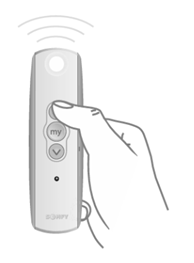
- Press and HOLD the UP and DOWN buttons together until the shade jogs (short up/down motion) once.
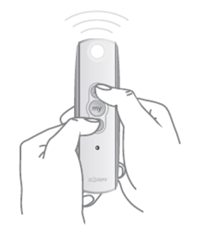
- HOLD the UP or DOWN button until the drape reaches the new Open Limit.
- Once the drape reaches the new Opened Limit, press and HOLD the “MY” or “STOP” button until the drape jogs.
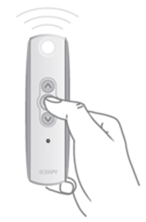
- Run the drape all the way up and back down to confirm the new Opened Limit has been saved.
- Repeat for each drape as necessary.
Setting the closed limit:
- Using the remote that currently controls the shade, select the channel, if applicable, by using the button at the bottom of the remote until the correct channel light is flashing.
- Press and release the DOWN button to allow the drape to travel and stop on its own at the current Closed Limit.
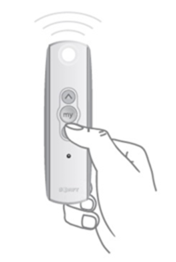
- Press and HOLD the UP and DOWN buttons together until the shade jogs (short up/down motion) once.
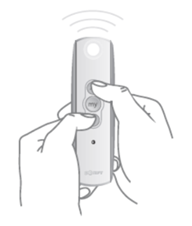
- HOLD the UP or DOWN button until the drape reaches the new Closed Limit.
- Once the drape reaches the new Closed Limit, press and HOLD the “MY” or “STOP” button until the drape jogs.
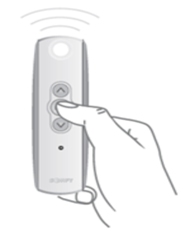
- Run the drape all the way up and back down to confirm the new Closed Limit has been saved.
- Repeat for each drape as necessary.
For additional support:
Email: motorization.support@springswindowfashions.com, responses could take up to 24 hours
Customer Service Team: 1-800-221-6352
Was this article helpful?
That’s Great!
Thank you for your feedback
Sorry! We couldn't be helpful
Thank you for your feedback
Feedback sent
We appreciate your effort and will try to fix the article