ARC: The Screen On My Remote Isn't Lighting Up, What Do I Need To Do?

Modified on Tue, 7 Jul at 11:43 AM

When the controller’s light or LED screen is not coming on, it may be time to change the batteries in your controller.  


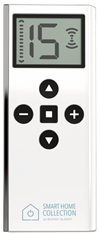
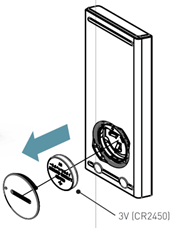
15 Channel Remote

  • Remove the remote from its mount.

  • Twist the battery cover off using a coin or similar item.

  • Replace the 3v CR2450 lithium coin battery with a new one.

  • Put the battery cover back on the remote.


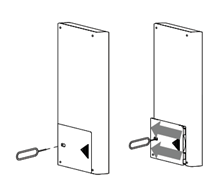
5 Channel Remote

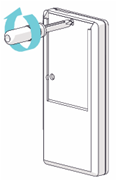
  • Remove the remote from its mount

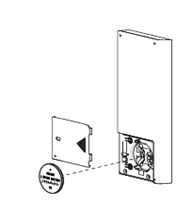
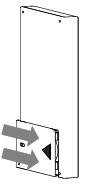
  • Using SIM card pin, paperclip, mini screwdriver, etc., push the battery cover release button and slide the battery cover in the direction shown at the same time.


  • Replace the 3v CR2450 lithium coin battery with a new one.
  • Slide up to lock the battery door


5 Channel Wall Switch

  • Remove the Wall Switch from the magnetic holder.

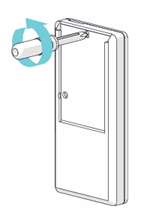
  • Remove the small screw on the back of the Wall Switch.

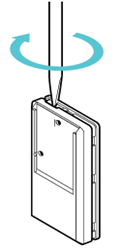
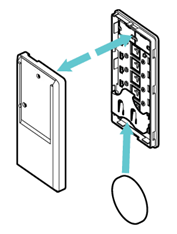
  • Open rear battery cover by gently separating switch covers with a screwdriver.

  • Replace the 3v CR2450 lithium coin battery with a new one.

  • Snap covers back together.

  • Insert and fasten screw.

  • Install the Wall Switch back on the magnetic holder.


For additional support:

  • Email:  motorization.support@springswindowfashions.com, responses may take up to 2 business days
  • Customer Service Team: 1-800-221-6352


Was this article helpful?

That’s Great!

Thank you for your feedback

Sorry! We couldn't be helpful

Thank you for your feedback

Let us know how can we improve this article!

Select at least one of the reasons
CAPTCHA verification is required.

Feedback sent

We appreciate your effort and will try to fix the article