To re-assign shades to different channels of a remote using the TaHoma pro app when a switch has been set up, please follow the instructions below:
- Open the TaHoma pro app, select “Access an active TaHoma switch”, select yes or no for if installer installed the system, select “Scan the TaHoma QR code” at the bottom of the screen and scan the QR code on the switch.
- Once switch has been accessed, select “Zigbee controls”
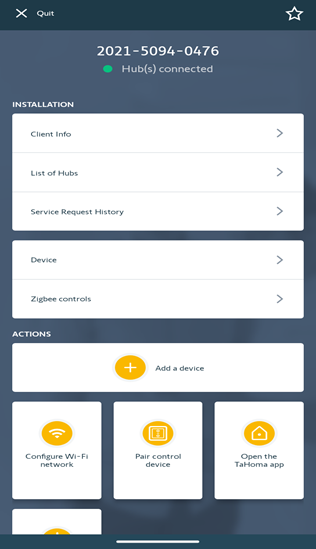
- Select the remote that needs the channels assigned properly
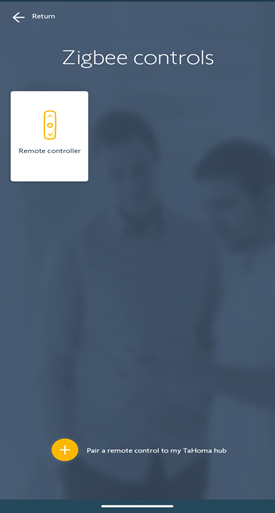
- Select “Linked devices”
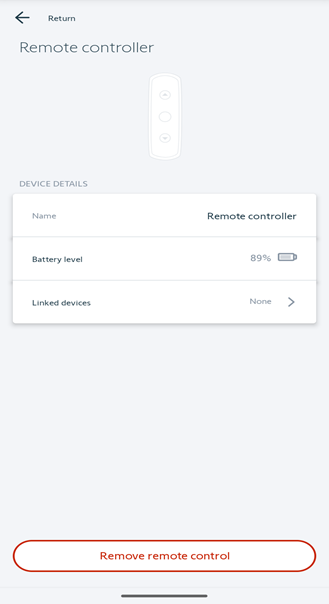
- Select the channel that you want to put the shade on or take the shade off.
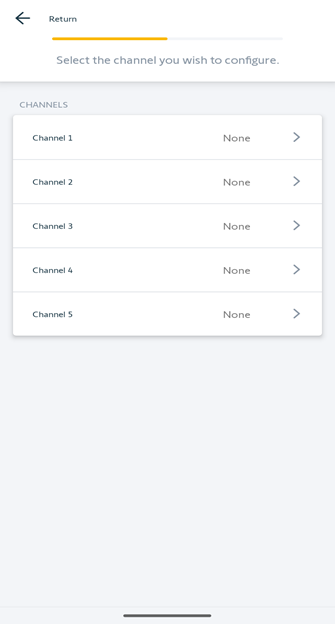
- Select the shade that you want to add or remove from the channel then tap “Next”.
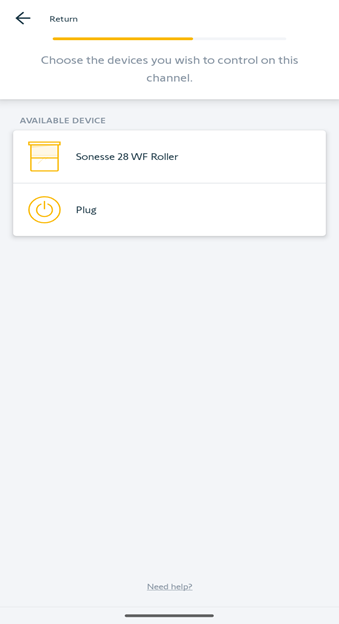
- Follow the instructions on the app to finish the pairing process.
For additional support:
- Email: motorization.support@springswindowfashions.com, responses could take up to 2 business days
- Customer Service Team: 1-800-221-6352
Was this article helpful?
That’s Great!
Thank you for your feedback
Sorry! We couldn't be helpful
Thank you for your feedback
Feedback sent
We appreciate your effort and will try to fix the article