To add a remote to a shade without a Tahoma Switch being installed and using the Tahoma Pro app, please follow the instructions below:
- The following steps should be taken after the motor has been connected to via the Tahoma Pro app and the motor has been configured.
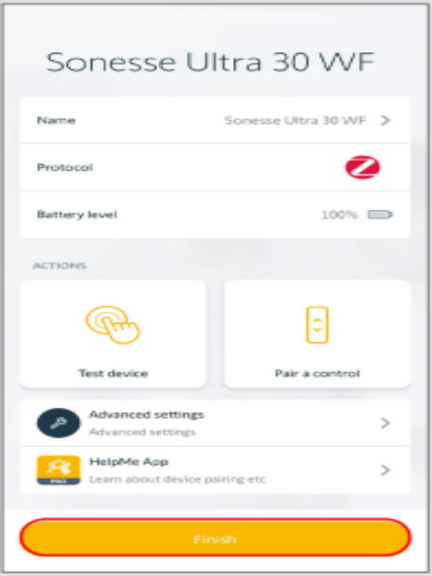
- Before selecting “Finish” after configuring the motor, select “Pair a control”.
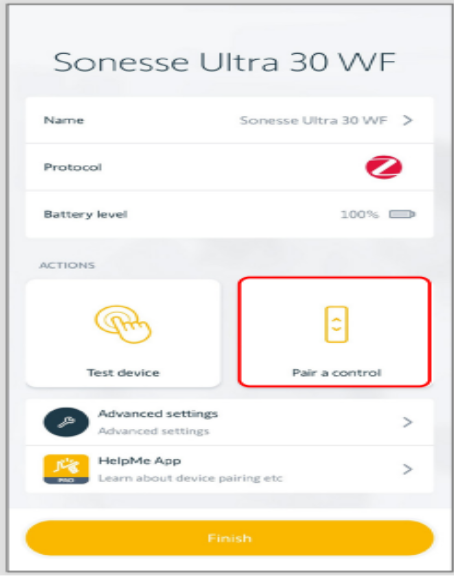
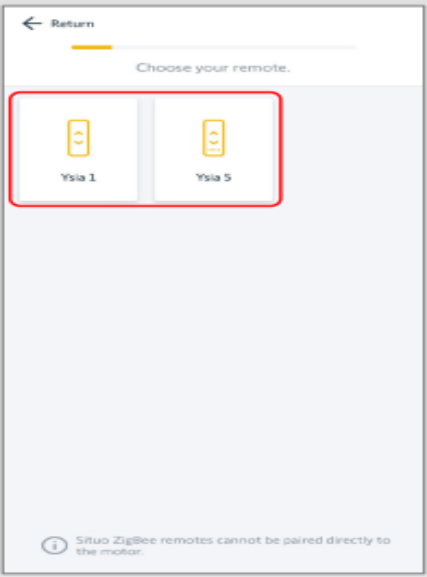
- Select the type of remote that is being used.
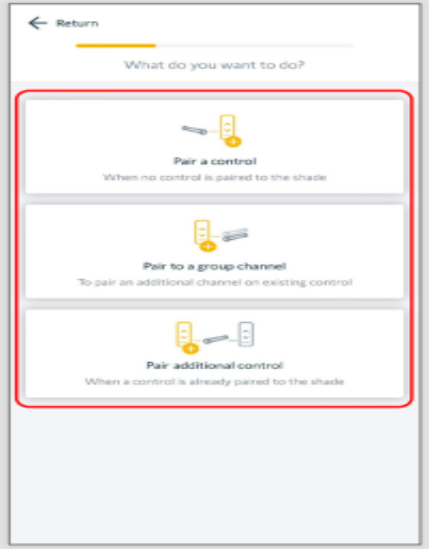
- After selecting the remote type, choose one of the following:
- Select “Pair a control” if no controller is paired to the shade.
- Select “Pair to a group channel” to pair an addition channel on a remote that is already paired to the shade.
- Select “Pair additional control” if there is a remote already paired to the shade and another remote is being paired to it.
- If multiple remotes are being set up, be sure to pair the remotes with each other before pairing shades.
- If multiple remotes are being set up, be sure to pair the remotes with each other before pairing shades.
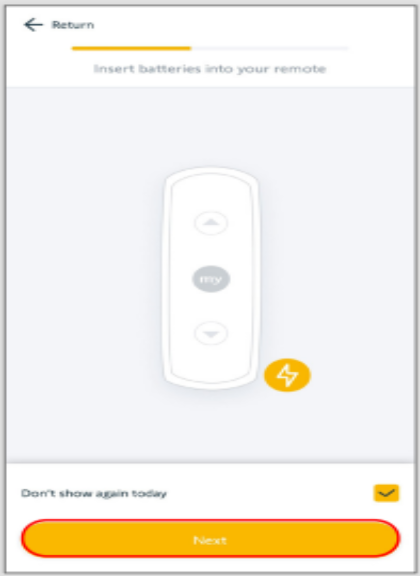
- If selecting “Pair a control”, first ensure the batteries are in the remote, then select “Next”.
- If applicable, press the channel selection button to select the desired channel the shade will be paired with, then select “Next”. The motor should jog once.
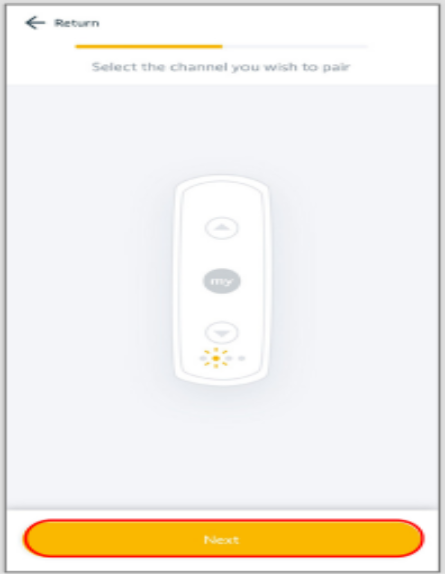
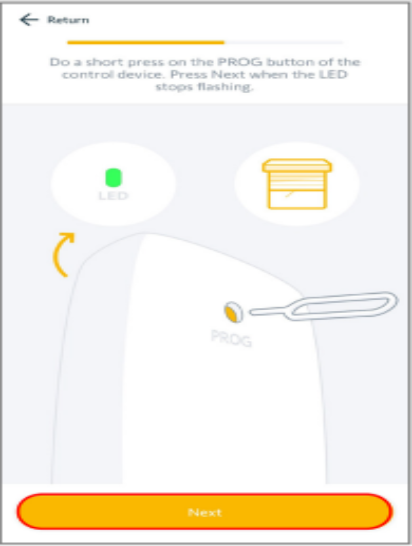
- Ensure the remote is within 2 feet of the motor head, then briefly press (press in for less than .5 seconds) the programming button on the back of the remote.
- The remote LED will flash amber and then flash green once the motor is paired.
- Select “Next” when the remote LED stops flashing.
- The motor will jog once to confirm the pairing was completed successfully.
- The motor will jog once to confirm the pairing was completed successfully.
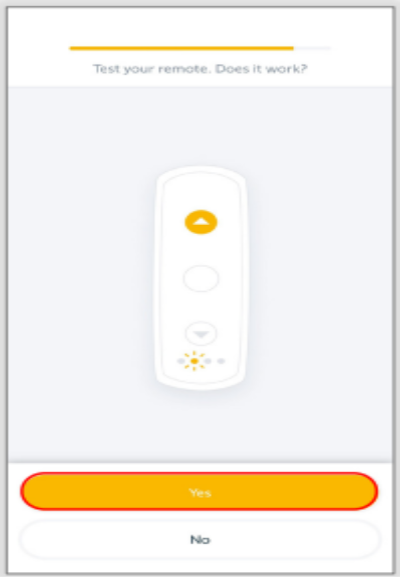
- Test the remote control, then select “Yes” if the remote operates the motor.
- If the remote does not operate the motor, select “No” to restart the process.
- If the remote does not operate the motor, select “No” to restart the process.
- Select “Finish” if the remote and motor are paired properly.
- To pair multiple motors to a remote or channel, select “Next device” to scan the motor and repeat the “Pair a control” steps.
- To pair multiple motors to a remote or channel, select “Next device” to scan the motor and repeat the “Pair a control” steps.
- If you are selecting “Pair to a Group Channel”, first ensure the batteries are in the remote.
- Press the channel selection button to select the desired channel the shade will be paired with, then select “Next”. The motor should jog once.
- Ensure the remote is within 2 feet of the motor head, then briefly press (press in for less than .05 seconds) the programming button on the back of the remote
- The remote LED will flash amber and then flash green once the motor is paired.
- Select “Next” when the remote LED stops flashing.
- The motor will jog once to confirm the pairing was successful.
- Test the remote control and select “Yes” if the remote operates the motor
- If the channel does not operate the remote, select “No” to restart the process.
- Select “Finish” if the remote and motor are paired properly.
For additional support:
Email: motorization.support@springswindowfashions.com, responses could take up to 24 hours
Customer Service Team: 1-800-221-6352
Was this article helpful?
That’s Great!
Thank you for your feedback
Sorry! We couldn't be helpful
Thank you for your feedback
Feedback sent
We appreciate your effort and will try to fix the article