Note: You would use these steps when you order an additional shade, an additional remote, a replacement shade, or a replacement remote.
First, you will want to rule out any power issues through the link here.
Once you have confirmed that both the shade and remote have power, you will need to follow the steps below to pair the remote to the shade.
Before you begin:
- Identify what product you have from the list below to locate the program button on the motor. The programming button is in different locations based on the product ordered.
- Have a small item, like a paperclip.
- Certain products may need to be removed from the window to access. See examples below of where the programming button might be located.
- After initiating the first pairing step you will have 2 minutes before the motor times
out to complete the sequence
Solar or Roller Shades
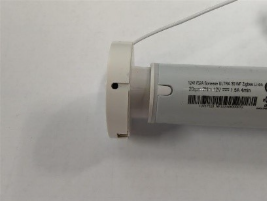
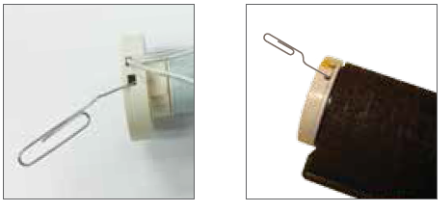
Cellular, Pleated, or Roman Shades
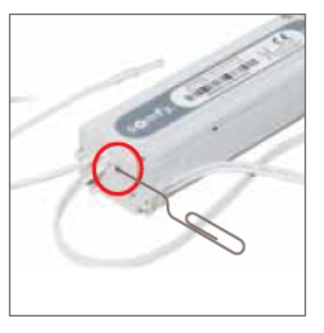
Aluminum, Wood, Faux Wood, Vinyl Blinds – Discontinued
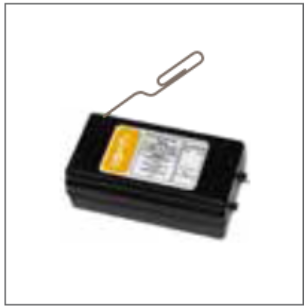
Once you have the programming button on your shade located, follow the instructions below to pair the shade and remote together.
NOTE: The shade will need to be connected to its power source for programming.
- Press and hold the program button on the motor until the shade jogs (short up/down motion) once.
- Select the channel, if using a multi-channel remote, then quickly press and release the programming button on the controller. The shade will jog once to confirm the programming is successful.
- Repeat steps 1 and 2 as needed for each shade.
For additional support:
Email: motorization.support@springswindowfashions.com, responses could take up to 24 hours
Customer Service Team: 1-800-221-6352
Was this article helpful?
That’s Great!
Thank you for your feedback
Sorry! We couldn't be helpful
Thank you for your feedback
Feedback sent
We appreciate your effort and will try to fix the article