If your shade was manufactured starting in 2019 or later, please click here for proper adjustment steps.
NOTE: If you are not sure when the shade was manufactured, you can check the manufacturer’s sticker at the top of the shade to find the date.
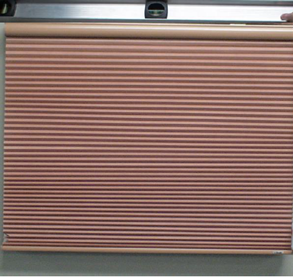
If your cellular or pleated shade is hanging crooked and manufactured prior to 2019, follow the instruction below to fix your shade.
- Make sure everything is level by using a carpenter’s level to check the brackets, window, and mounting surface. It is very common for windows to become slightly uneven over time.
- With the remote that currently controls the shade, select the channel, if applicable, using the button at the bottom of the remote until the correct channel light is flashing.
- Press and release the DOWN button on the controller and let the shade stop at the lower limit.
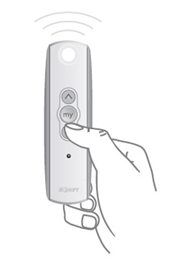
- Once the shade stops, hold both the UP and DOWN buttons together until the shade does a jog (short up/down motion).
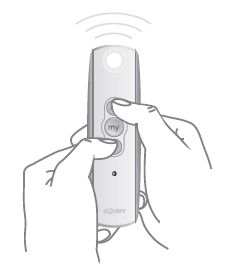
- Holding the DOWN button, move the shade past its lower limit until the shade starts to rise back up.
NOTE: If the bottom rail rests on a windowsill, it will be necessary to pull it away from the window so that the bottom rail can move freely.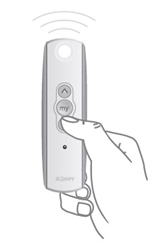
- Press and HOLD the UP button to bring the shade back to its normal lower limit. Once the shade reaches the correct position, hold the “MY” (STOP) button until the shade jogs.
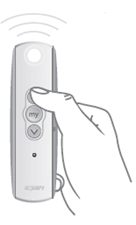
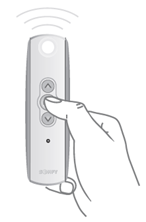
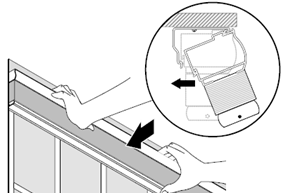
- If shade is still uneven, you will need to remove the shade from installation brackets. Make sure the shade is fully raised to the upper limit before trying to uninstall the shade. A wide bladed device, such as a flat head screwdriver, can be put between the headrail and the bracket to help pop it out of the brackets.
NOTE: On larger shades you may need an additional person to help with this step for quick and safe removal.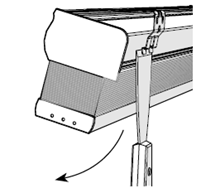
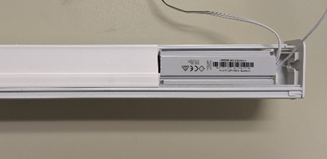
- Once the shade is down, remove the plastic dust cover. You can also use a screwdriver to help remove the dust cover.
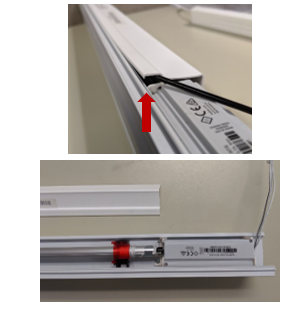
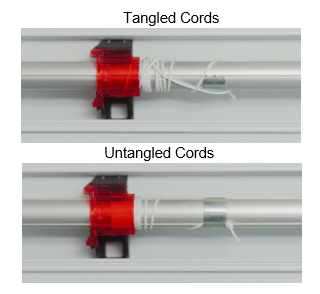
- Use the image below as a reference to make sure cords are not twisted or tangled in the headrail. If needed, remove the plastic cover to adjust the cords.
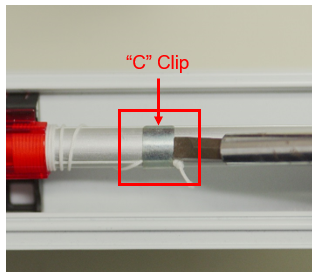
- If the little metal clips, called C-clips, are not positioned evenly in the headrail, slide the clip away from the spool of cording to raise the shade, or toward the spool of cording to lower the shade.
- Reattach the dustcover.
- Reinstall the shade into the mounting brackets.
- Run the shade up and down two times to see if the shade is still uneven. If the issue is not fixed, please proceed to the next steps.
- Fully lower the shade before removing either endcap from the bottom rail.
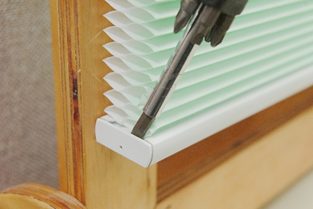
- Slide out the aluminum slat from inside the bottom rail.
NOTE: Placing a piece of tape on the end of the aluminum slat makes it easier to slide.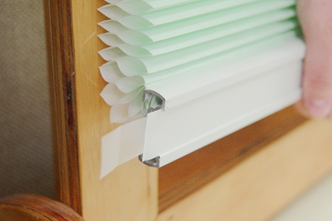
- Locate cord on the side of the shade needs to be corrected. While holding onto the cord, push up on the bottom rail securing cord with a Spring Clamp (see Tools Needed).
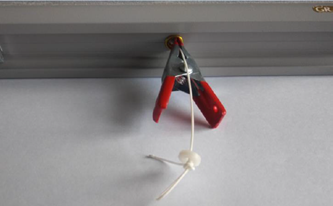
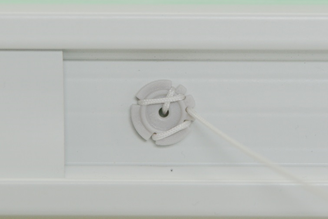
- Shades with Cinch Button: Mark the cord with a pen to indicate the new location for cinch button.
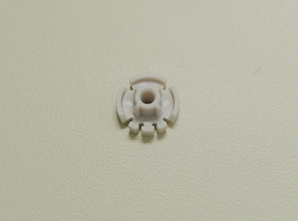
- Thread the cord through hole of cinch button as shown.
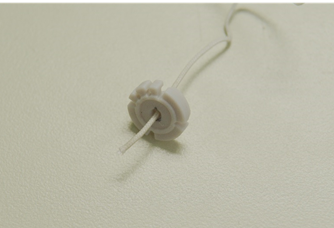
- Wrap the cord up through top left finger opening, back down, and through bottom left finger opening.
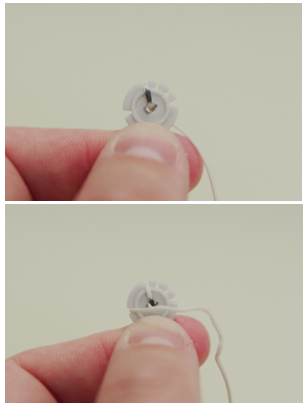
- Wrap the cord up through second top finger opening, down back through, then through the bottom right finger opening.
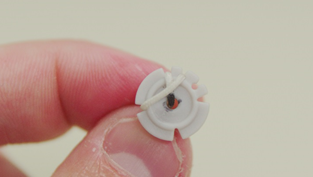
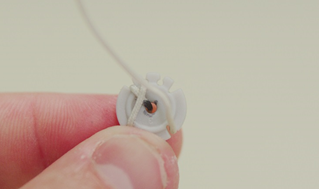
- Wrap the cord up and through top right finger opening, around backside, ending with the cord coming out of the third top finger opening.
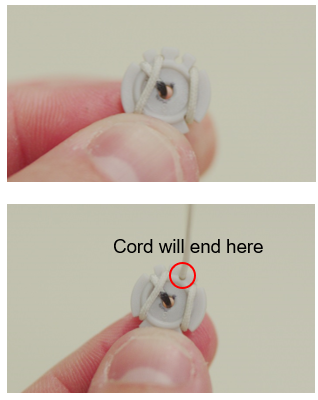
- Snap the cinch button back into the bottom rail.
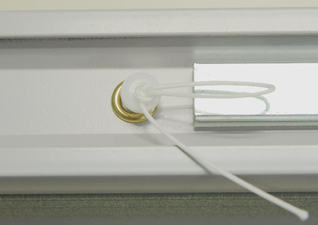
- Shades using a Cord Guide Button: Mark the cord with a pen to indicate where new cord knot should be tied. Retie the cord in a knot so shade is even in length.
- Test the shade by raising and lowering it fully a few times. Readjust the cord as needed if is still uneven.
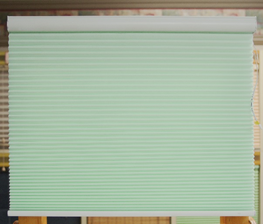
- Once the shade is level, replace the aluminum slat and endcap.
NOTE: Placing a piece of tape on the end of the slat makes it easier to slide back in.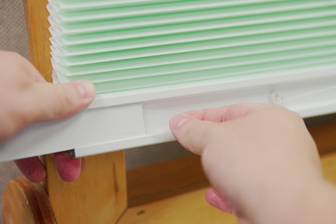
For additional support:
Email: motorization.support@springswindowfashions.com, responses could take up to 24 hours
Customer Service Team: 1-800-221-6352
Was this article helpful?
That’s Great!
Thank you for your feedback
Sorry! We couldn't be helpful
Thank you for your feedback
Feedback sent
We appreciate your effort and will try to fix the article