To register a Tahoma Switch using the Tahoma Pro app, please follow the instructions below:
- Open the Tahoma Pro app and select “Register a Tahoma switch”.
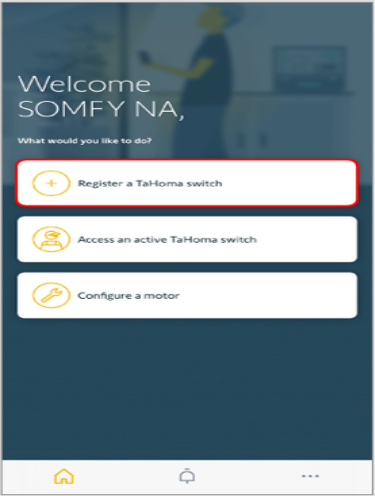
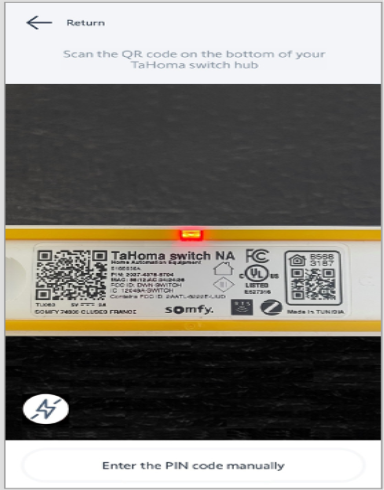
- Scan the QR code on the bottom of the Tahoma switch that is closest to where the power plugs in, or enter the 12 digit PIN code on the bottom of the Tahoma switch.
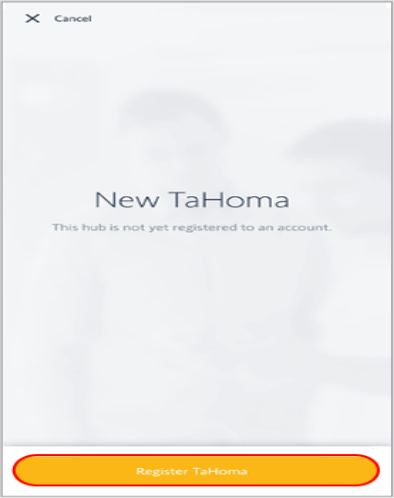
- Select “Register Tahoma”.
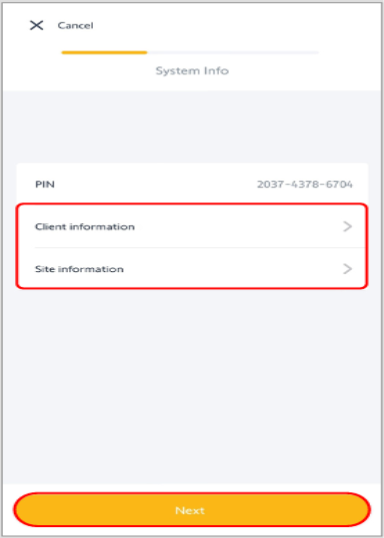
- Select “Client information” to enter the contact information, then select “Validate”.
- Select “Site information to enter the optional site information, then select “Validate”.
- After entering the client and site information, select “Next”.
- Select “Start Tahoma commissioning”.
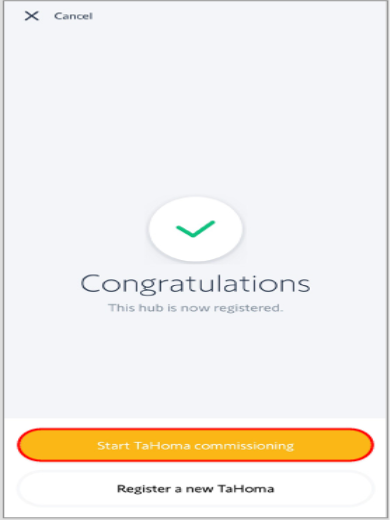
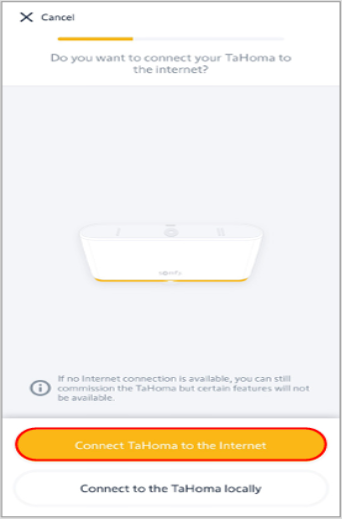
- Select “Connect Tahoma to the Internet”.
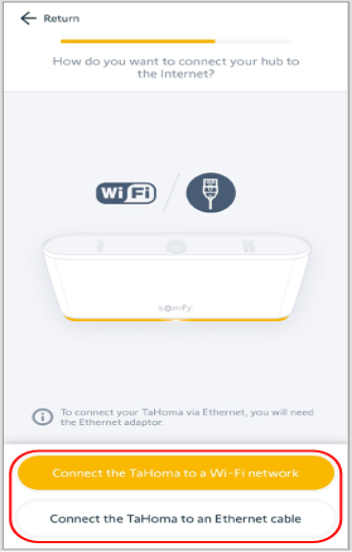
- Select “Connect the Tahoma to a Wi-Fi network” or select “Connect the Tahoma to an ethernet cable”, whichever method is applicable to the installation.
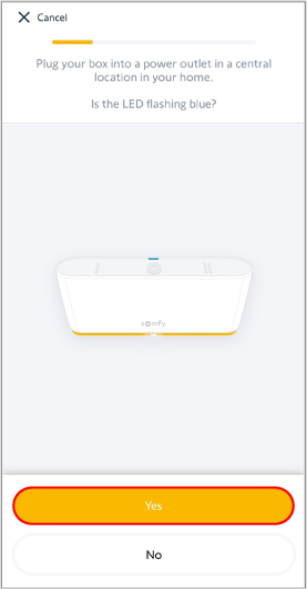
- Connect power to the Tahoma and wait for the top LED to flash blue, then select “Yes”.
- Please note that Bluetooth must be enabled on your device.
- Please note that Bluetooth must be enabled on your device.
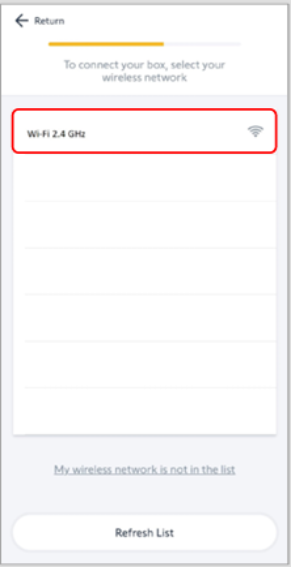
- Select the wireless network that you want to connect to.
- Note that the Tahoma will only connect to a 2.4 GHz network. The network can be dual band, but a 2.4 GHz network must be available.
- If your wireless network is not listed, select “Refresh List” or select “My wireless network is not in the list” and follow the app instruction to continue.
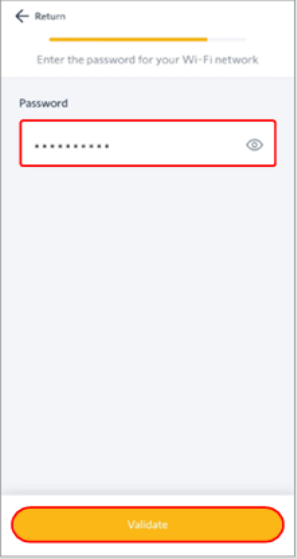
- Enter the password for the Wi-Fi network, then select “Validate”.
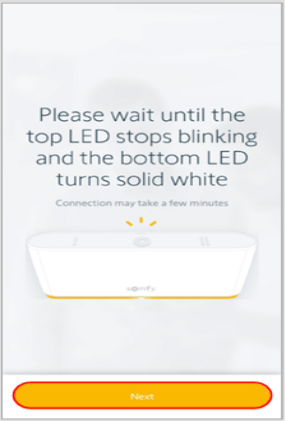
- Wait until the top LED on the switch stops blinking, and the bottom LED turns solid white.
- The connection to the wireless network may take a few minutes.
- If the “No box was detected” screen appears, the Wi-Fi connection was unsuccessful. Select “Retry” and follow the app based on the status LED of the Tahoma switch.
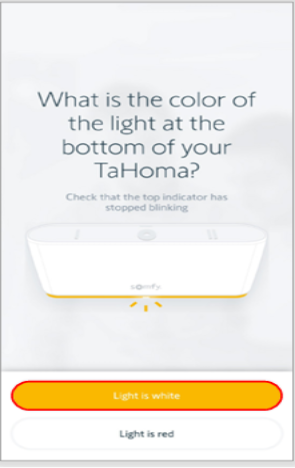
- Observe the color of the bottom LED, then select “Light is white” or “Light is red”.
- Red indicates a connection failure. Select “Retry” then follow the app instructions to continue.
- Red indicates a connection failure. Select “Retry” then follow the app instructions to continue.
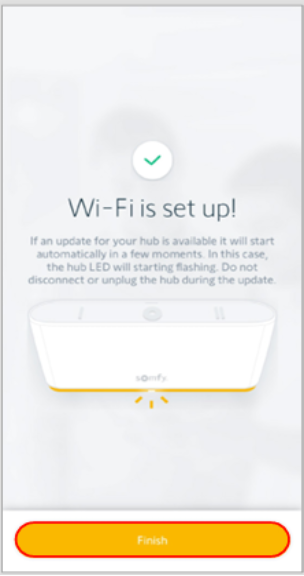
- Select “Finish”.
- If updates are available, the update process will start automatically. LEDs will flash during the update process. The process is complete when the top LED is off and the bottom LED is solid white.
- Do not disconnect or unplug the Tahoma during the update process.
For additional support:
Email: motorization.support@springswindowfashions.com, responses could take up to 24 hours
Customer Service Team: 1-800-221-6352
Was this article helpful?
That’s Great!
Thank you for your feedback
Sorry! We couldn't be helpful
Thank you for your feedback
Feedback sent
We appreciate your effort and will try to fix the article