To connect to a Zigbee motor via the Tahoma Pro app, please follow the instructions below:
a. You may select “Don’t show this again today” to prevent the prompt from showing again.
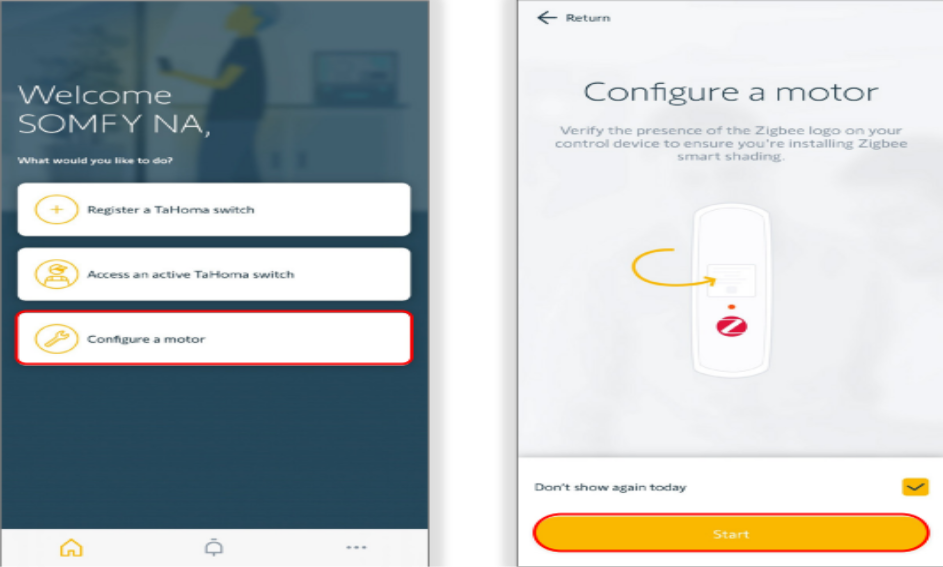
3. Select “Yes” if using a Tahoma hub for the installation. Select “No” to configure a motor without a Tahoma hub.
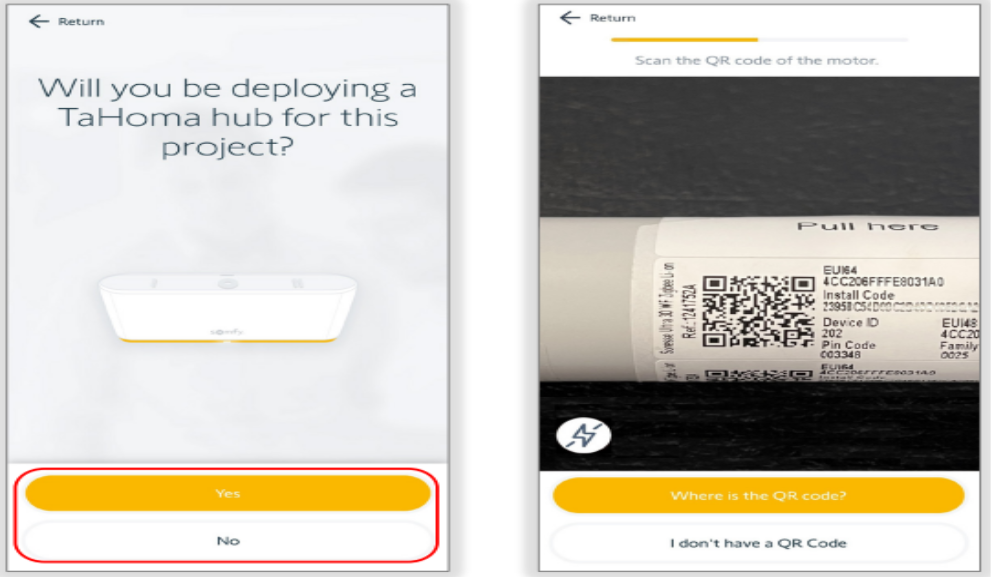
4. Locate the QR code for the motor.
a. The QR codes can be found on the antenna of the motor, the hembar of the shade or on the motor itself.
b. If the QR code is missing or illegible, select “I don’t have a QR code” and follow the app instruction to discover the motor.
5. Scan the QR code of the shade or motor.
6. Press the motor program button to wake up the motor, then select “Continue”.
a. Please note that the examples shown in the screenshots are for roller motors. The instructions may vary depending on the shade type that you want to configure.
7.If an update is required, select “Update now” or select “Later on” to continue to load the motor settings.
a.Best practice is to update the motor at this stage. Please ensure that the motor is up to date before completing the installation. The update process may take 3-5 minutes.
For additional support:
Email: motorization.support@springswindowfashions.com, responses could take up to 24 hours
Customer Service Team: 1-800-221-6352
Was this article helpful?
That’s Great!
Thank you for your feedback
Sorry! We couldn't be helpful
Thank you for your feedback
Feedback sent
We appreciate your effort and will try to fix the article