To configure a Zigbee motor through the Tahoma Pro app, please follow the instructions below:
- First open the Tahoma Pro app and connect to the motor using the connecting to a Zigbee motor instructions.
- Once connected to the motor, select the appropriate shade style.
- The screenshots shown are for roller style shades.
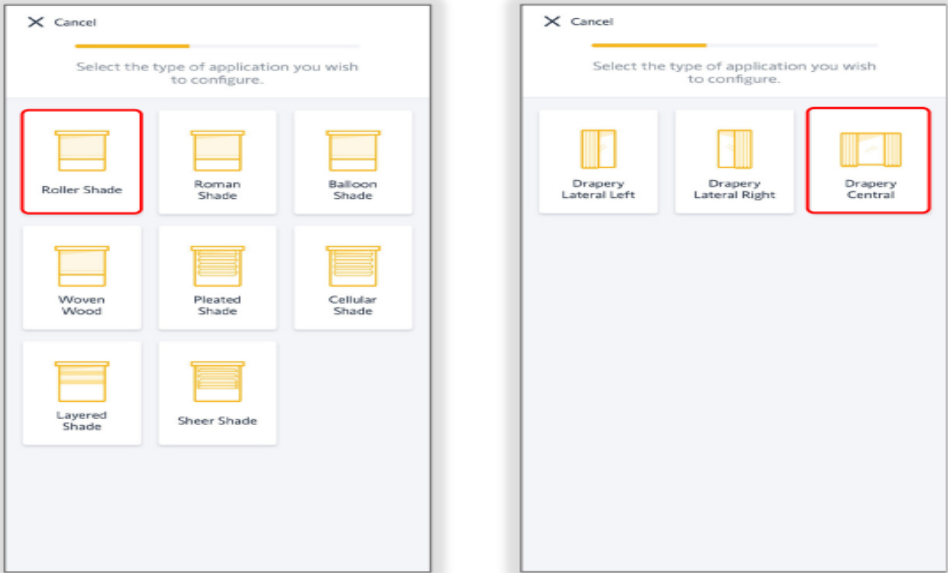
- The screenshots shown are for roller style shades.
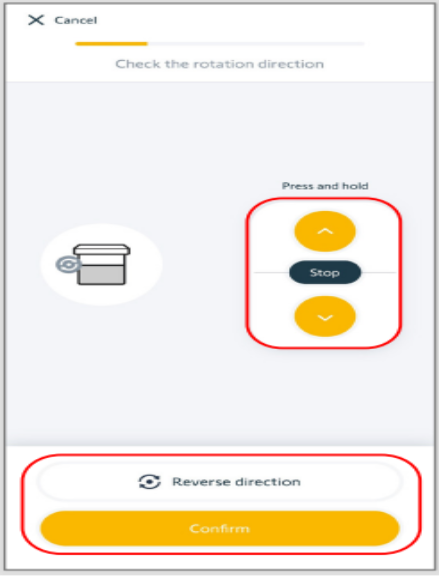
- Check the rotation direction of the motor by pressing and holding the up or down button to move the shade.
- If the motor is moving in the wrong direction, select “Reverse direction”.
- Once the motor direction is correct, select “Confirm” to continue to set the limits.
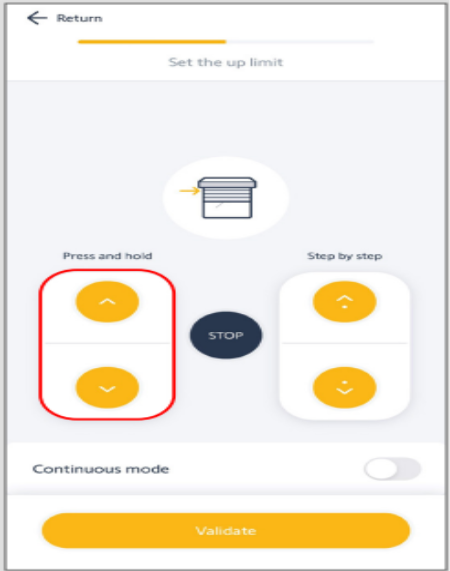
- Set the upper limit for the shade. You can press and hold the up button to move the shade up. Once the button is released, the shade will stop moving.
- You can also use the “Continuous mode”, then tap up. The shade will continuously move until the “Stop” button is pressed.
- If using continuous mode, be careful not to damage the shade. The motor will not stop automatically.
- The step by step buttons will move the shade in 1/8” increments.
- You can also use the “Continuous mode”, then tap up. The shade will continuously move until the “Stop” button is pressed.
- Once the desired upper limit is reached, press “Confirm”.
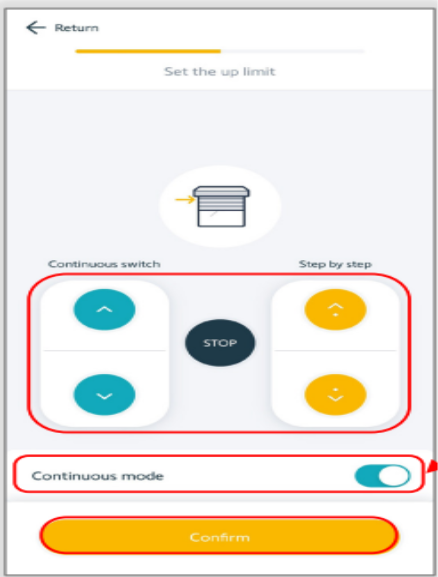
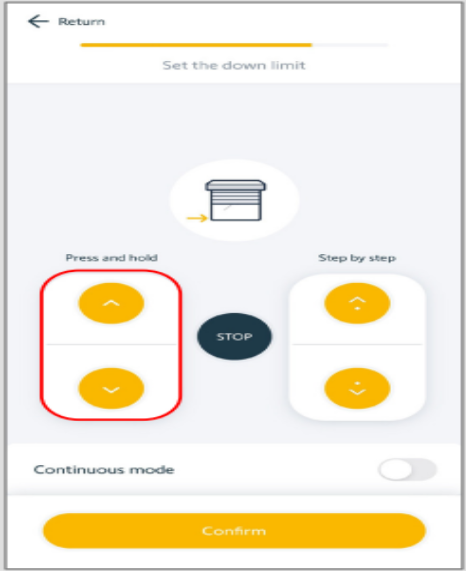
- Set the lower limit for the shade. You can press and hold the down button to move the shade down. Once the button is released, the shade will stop moving.
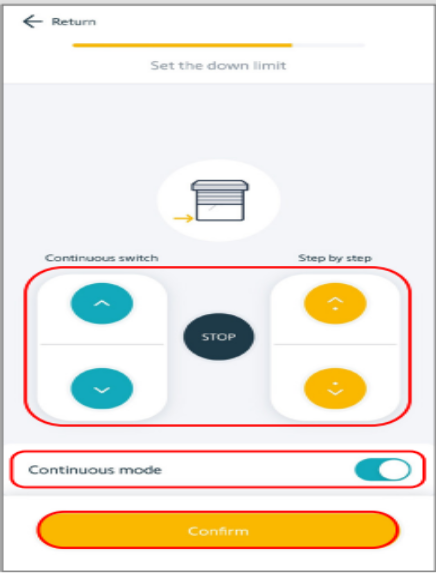
- You can also use the “Continuous mode”, then tap down. The shade will continuously move until the “Stop” button is pressed.
- If using continuous mode, be careful not to damage the shade. The motor will not stop automatically.
- The step by step buttons will move the shade in 1/8” increments.
- You can also use the “Continuous mode”, then tap down. The shade will continuously move until the “Stop” button is pressed.
- Once the desired lower limit is reached, press “Confirm”.
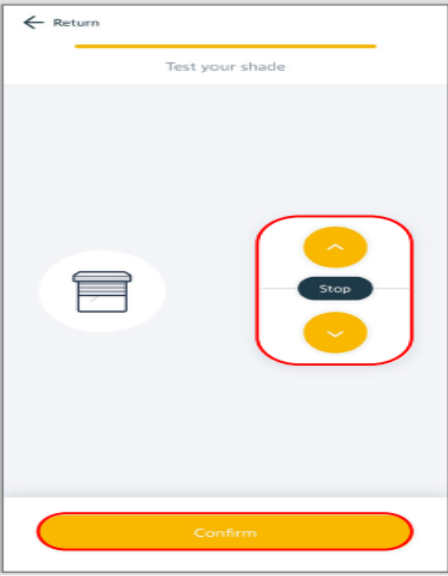
- Test operation of the device. If device is operating properly, select “Confirm”.
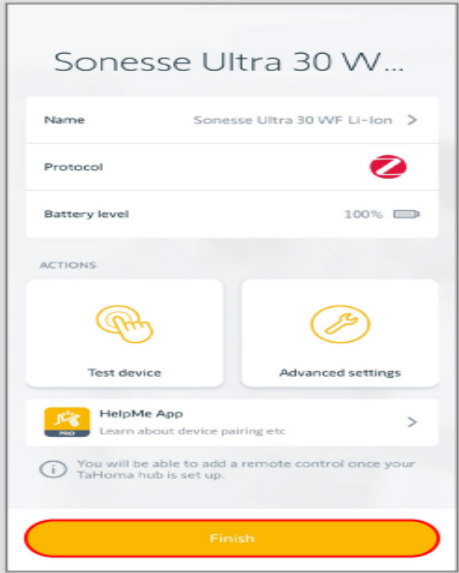
- You can now rename the shade if you would like by clicking on the name of the shade, typing the new name of the shade, pressing the return key on your keyboard, then selecting “Validate”. Once done naming the shade, select “Finish”.
- Select “Next device” to configure another motor.
- Select “Return to homepage” if you are done.
For additional support:
Email: motorization.support@springswindowfashions.com, responses could take up to 24 hours
Customer Service Team: 1-800-221-6352
Was this article helpful?
That’s Great!
Thank you for your feedback
Sorry! We couldn't be helpful
Thank you for your feedback
Feedback sent
We appreciate your effort and will try to fix the article