1. Select the channel you want to name using the arrow buttons (< / >).
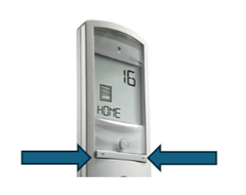
2. Press and hold the select button until “SET” appears on the screen. The screen will start flashing an icon for you to choose from. There are multiple choices, shades, shutters, rolling shutters, skylights, and awnings; select the one closest to your motorized product by using the arrow buttons (< / >).
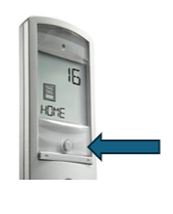
3. Briefly press the select button to save the chosen icon. Once an icon is chosen, you will be able to name the channel.
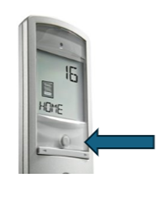
4. The bottom left-hand corner of the screen will now show a flashing hyphen. If needed, use the navigation buttons (< / >) to change which hyphen you will start with.
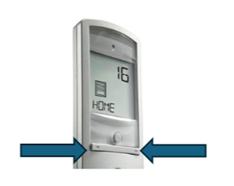
5. Briefly press the selection button to edit the spot you’ve selected.
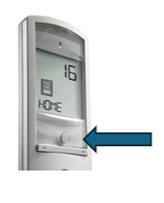
6. Press the arrow button (< / >) to select the correct character (A,B,C, etc.).
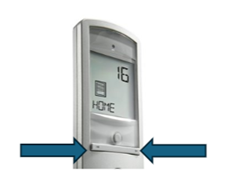
7. Briefly press the select button to save the character displayed and move to the next character.
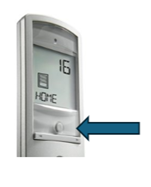
8. Repeat steps 4 to 7 until the channels name is complete.
9. Press and hold the selection button until “SET” disappears from the screen.
10. Repeat the steps again for each other channel that you wish to name.
For additional support:
- Email: motorization.support@springswindowfashions.com, responses could take up to 24 hours
- Customer Service Team: 1-800-221-6352
Was this article helpful?
That’s Great!
Thank you for your feedback
Sorry! We couldn't be helpful
Thank you for your feedback
Feedback sent
We appreciate your effort and will try to fix the article